How to Control Your Blender Camera with Your iPhone (Free)
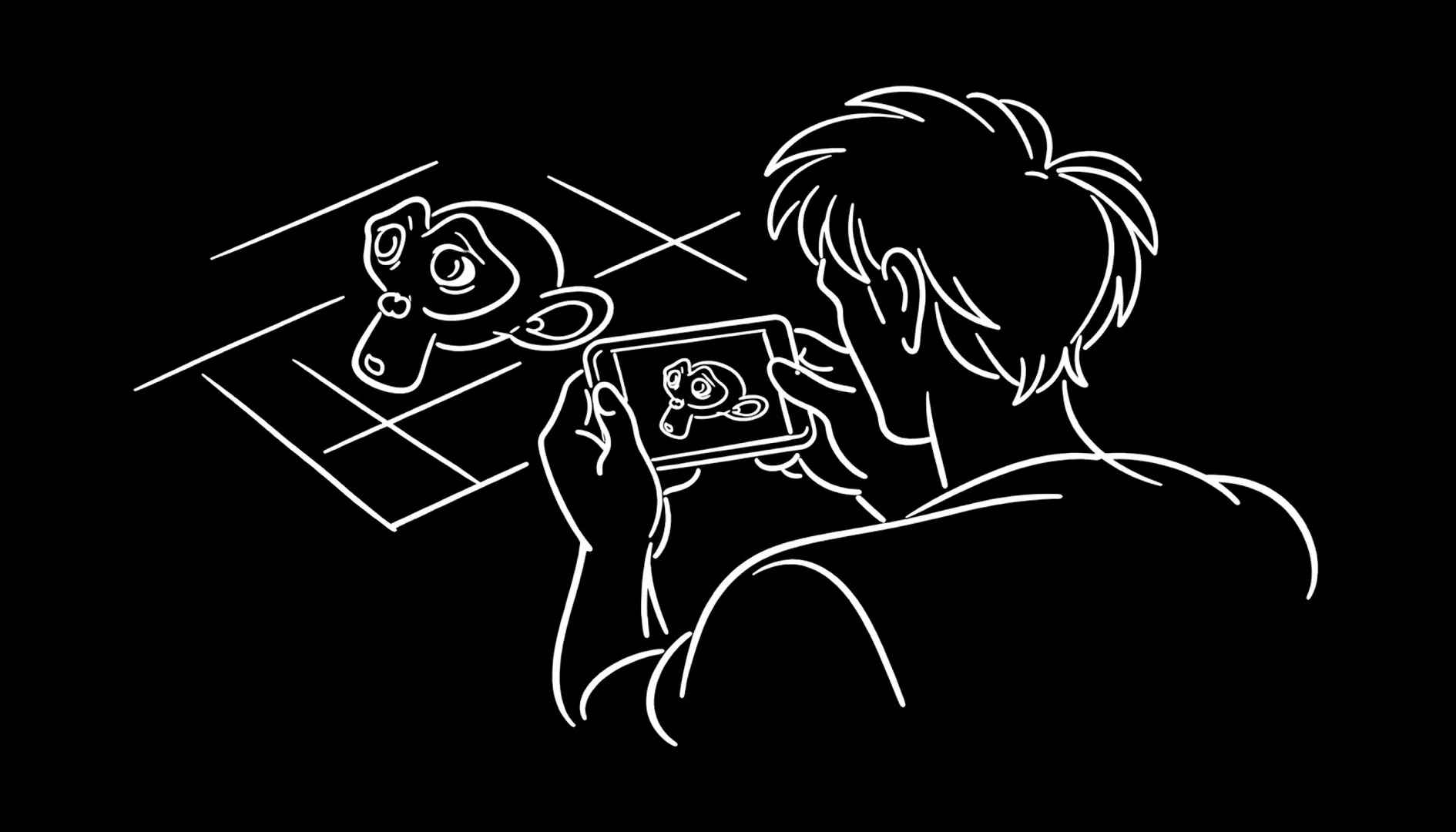
Animating a camera with keyframes and a mouse rarely feels like holding a camera. With Omniscient, your iPhone becomes a live camera for Blender: you walk, tilt and turn the phone, and the Blender camera follows in real time. You frame the shot on the phone screen, rehearse the move, then record it straight into your scene.
The app and the Blender add-on are both free, and live camera control is included in the free plan. Here is how to set it up.
What you need
- An iPhone or iPad with the Omniscient app (free on the App Store).
- Blender 4.2 or later, including Blender 5.0, 5.1 and 5.2 LTS.
- The free Omniscient Blender add-on.
- Both devices on the same local network. The live session runs over that network, not through the cloud.
Step 1: Install the Blender add-on
Open the add-on page and drag the install button into Blender, or download the add-on and install it from disk. It installs as a Blender extension.
Step 2: Open Virtual Camera in Blender
Open the scene you want to shoot, then go to Omniscient > Virtual Camera in the Blender sidebar. The panel shows a QR code.
Step 3: Connect your iPhone
In Omniscient, open Virtual Cam and tap New Virtual Camera Session. Point the scanner at the QR code in Blender. Once connected, your Blender viewport appears on the phone.
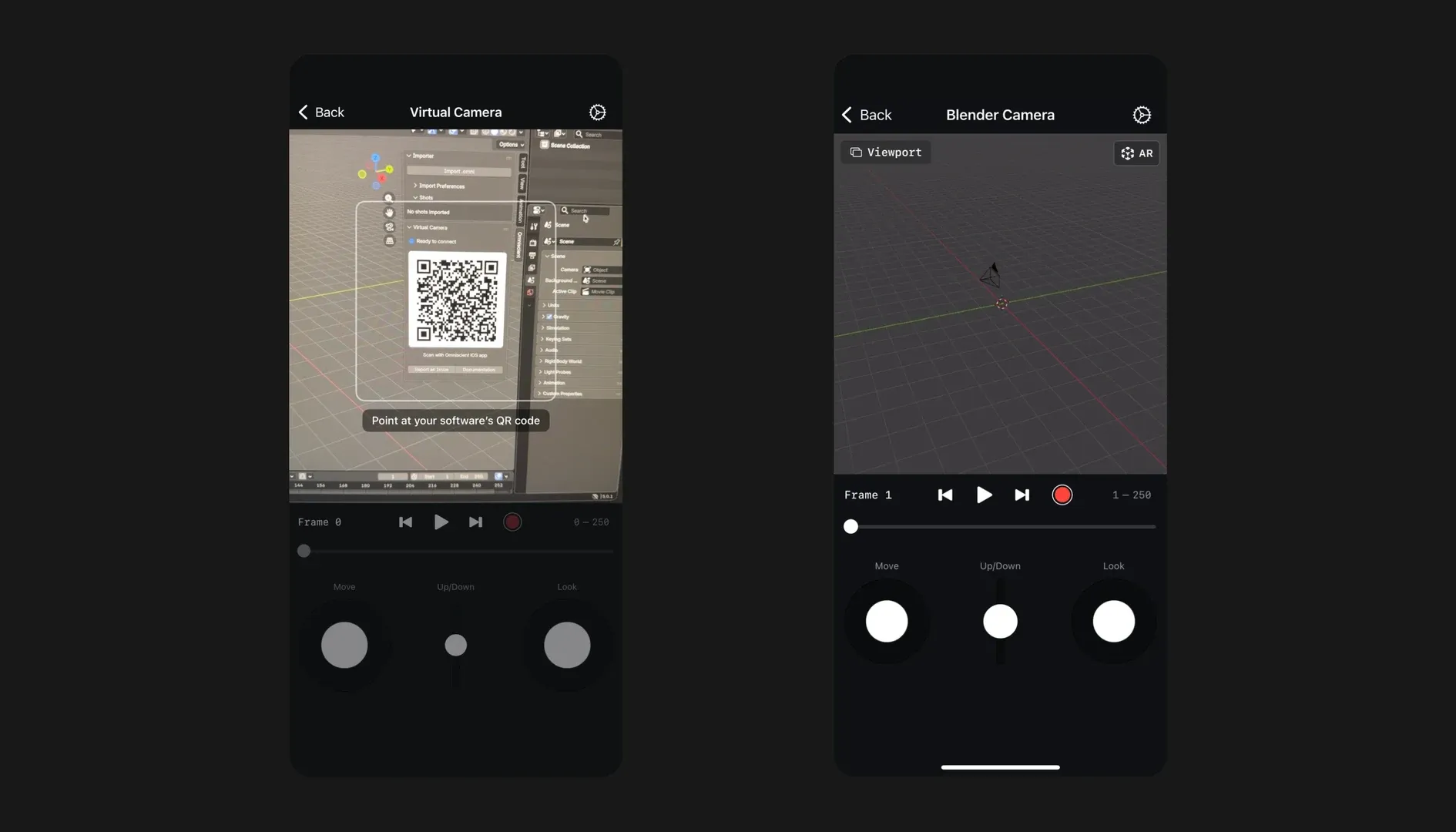
If the phone cannot reach Blender, check that both devices are on the same Wi-Fi network, that Settings > Privacy & Security > Local Network > Omniscient is enabled on iOS, and that your computer’s firewall allows Blender.
Step 4: Choose Camera or Viewport
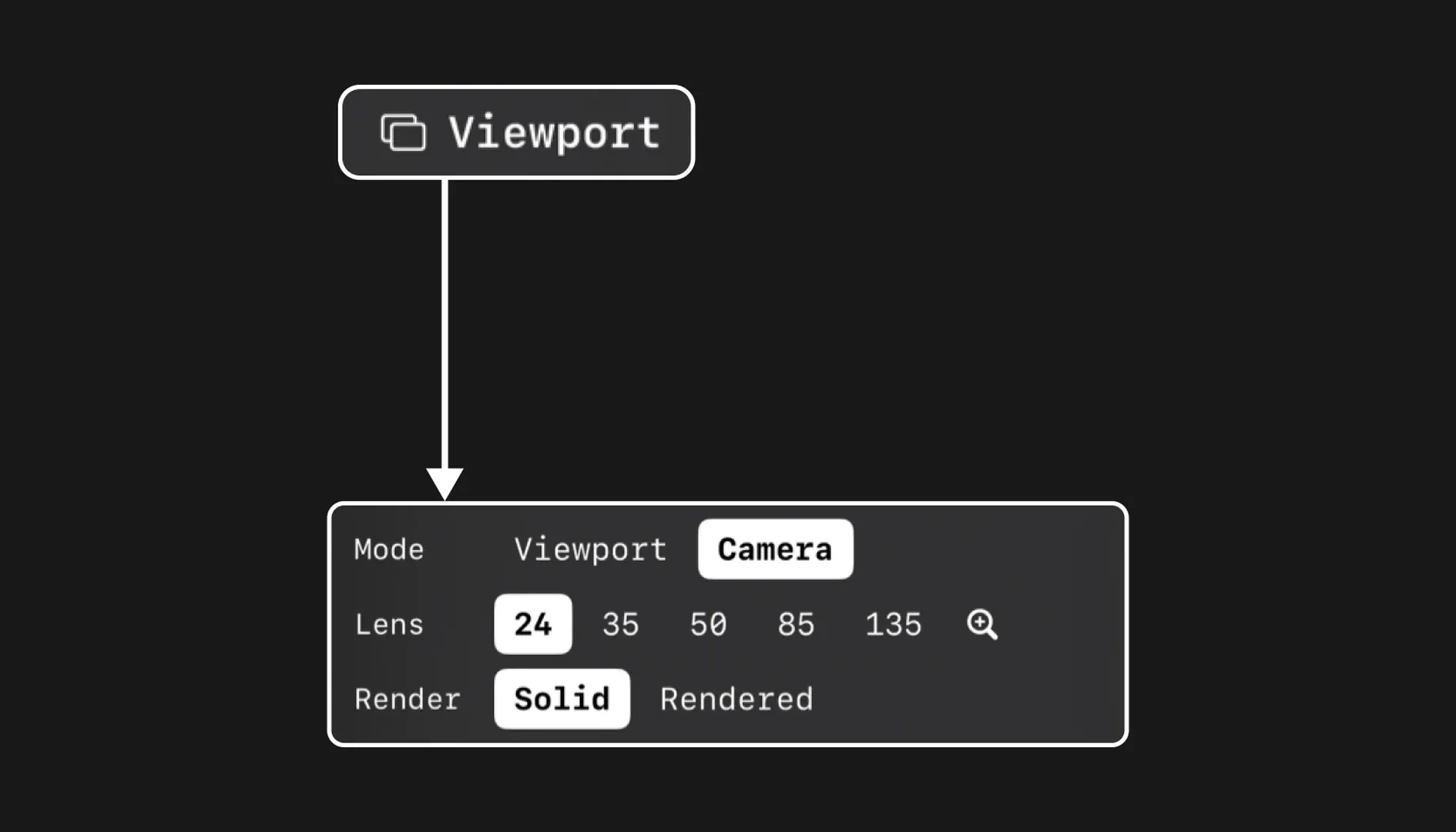
The mode menu decides what your phone moves:
- Camera moves the active Blender scene camera. Use it for framing, recording and handheld AR movement.
- Viewport moves Blender’s live viewport. Use it to explore the scene and for look development.
For shot work, pick Camera. The same menu sets the lens, from 24 to 135 mm, and switches the preview between Solid and Rendered.
Step 5: Move the camera
Tap AR and the phone becomes the camera: walk forward to dolly in, crouch for a low angle, turn to pan. The movement is applied to the Blender camera live, so you see the result on the phone screen as you move. This is what makes the move feel handheld, like operating a real camera.
Two settings help the move feel right. AR Scale, included in the free plan, changes how far the camera travels for each step you take, which is useful for large environments or miniatures. AR Smoothness reduces hand jitter on rotation and movement, and comes with Omniscient Plus.
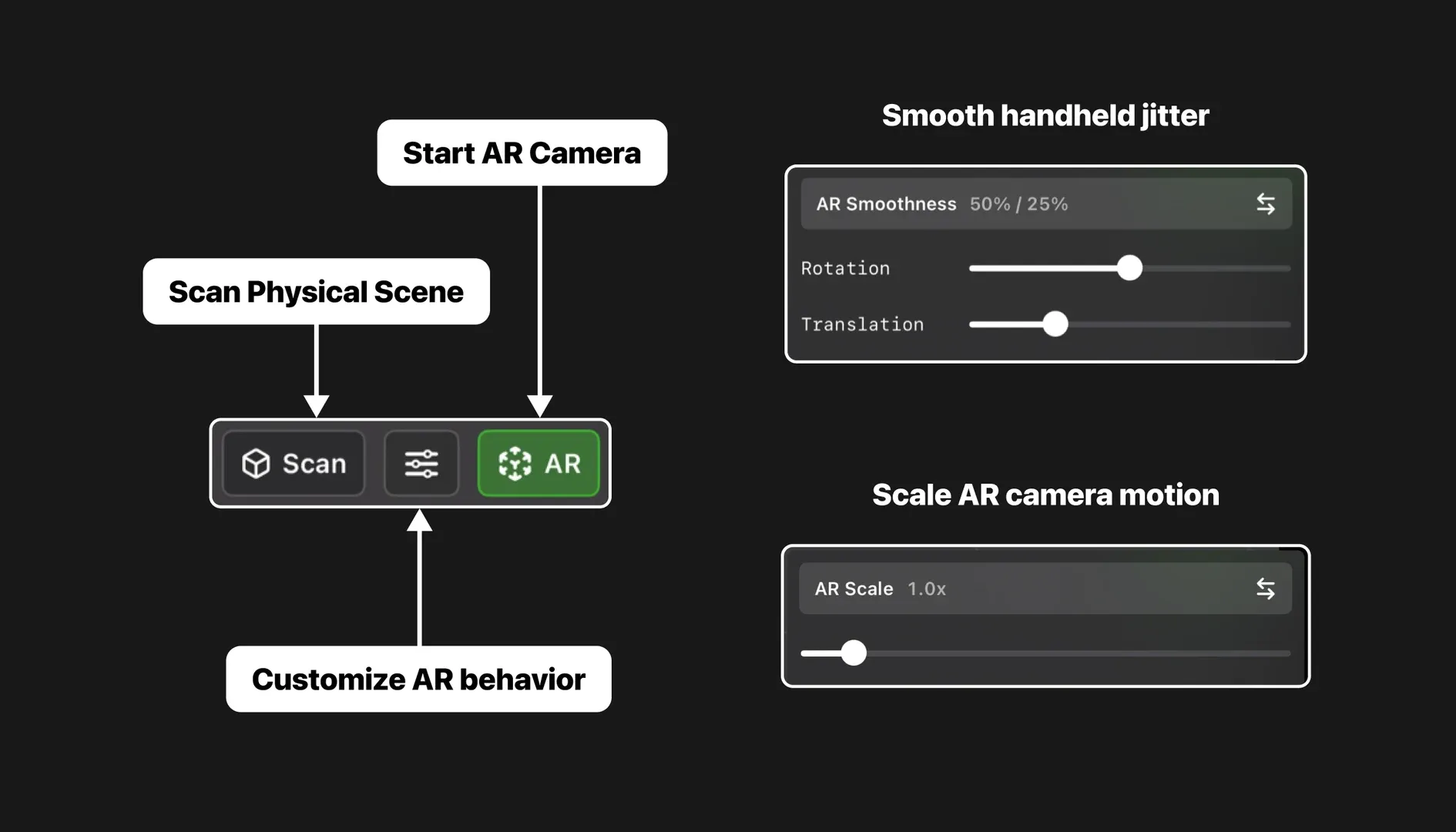
When you need to reposition without walking, use the touch controls and the on-screen joysticks to move, change height and look around. You can combine them with AR movement in the same session.
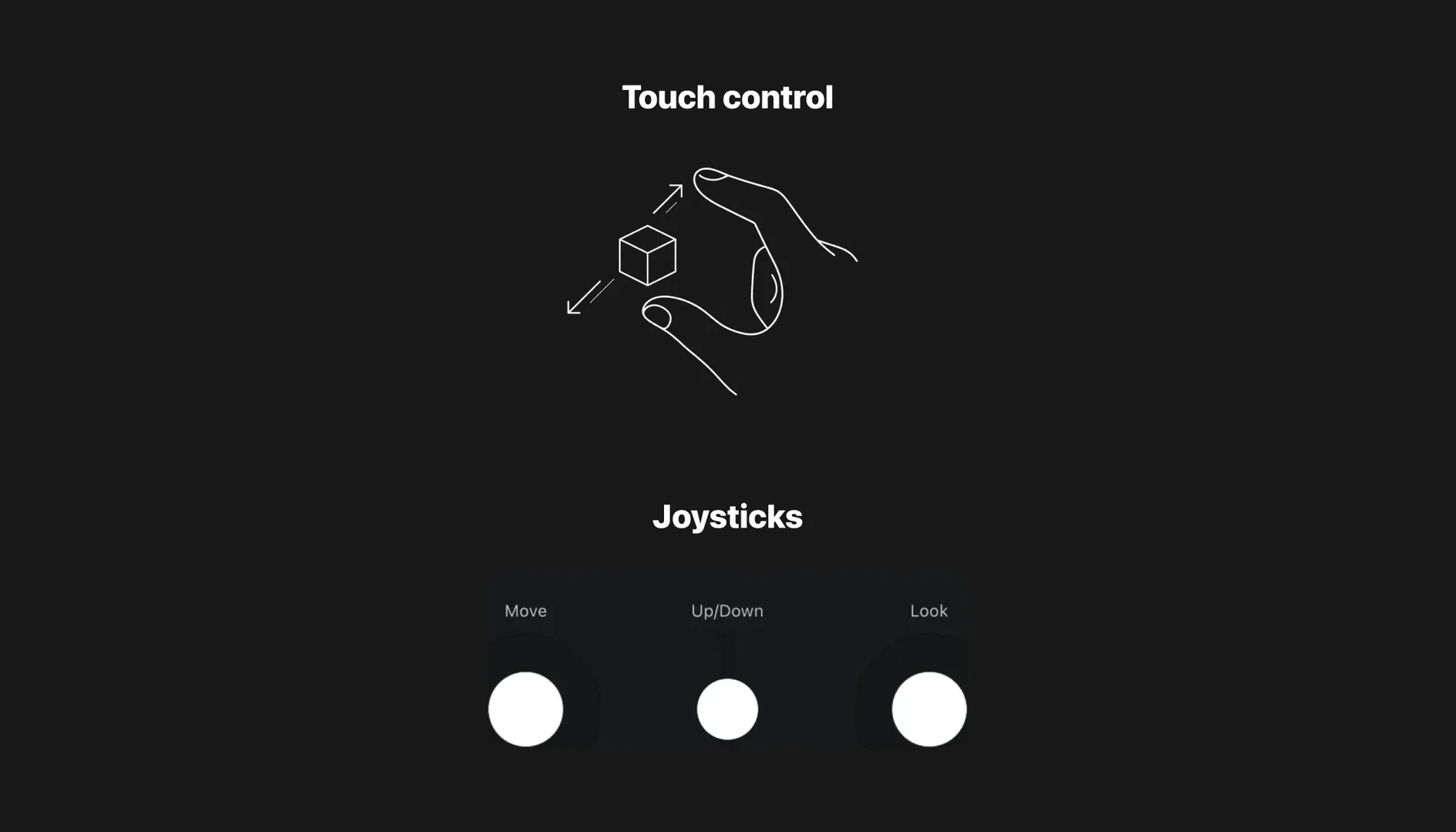
Step 6: Record the take
Use the timeline controls to play, pause, scrub and jump between frames. When the framing works, make sure you are in Camera mode and press record. The camera move is recorded into your Blender scene, so you can play it back, scrub through it and render it.
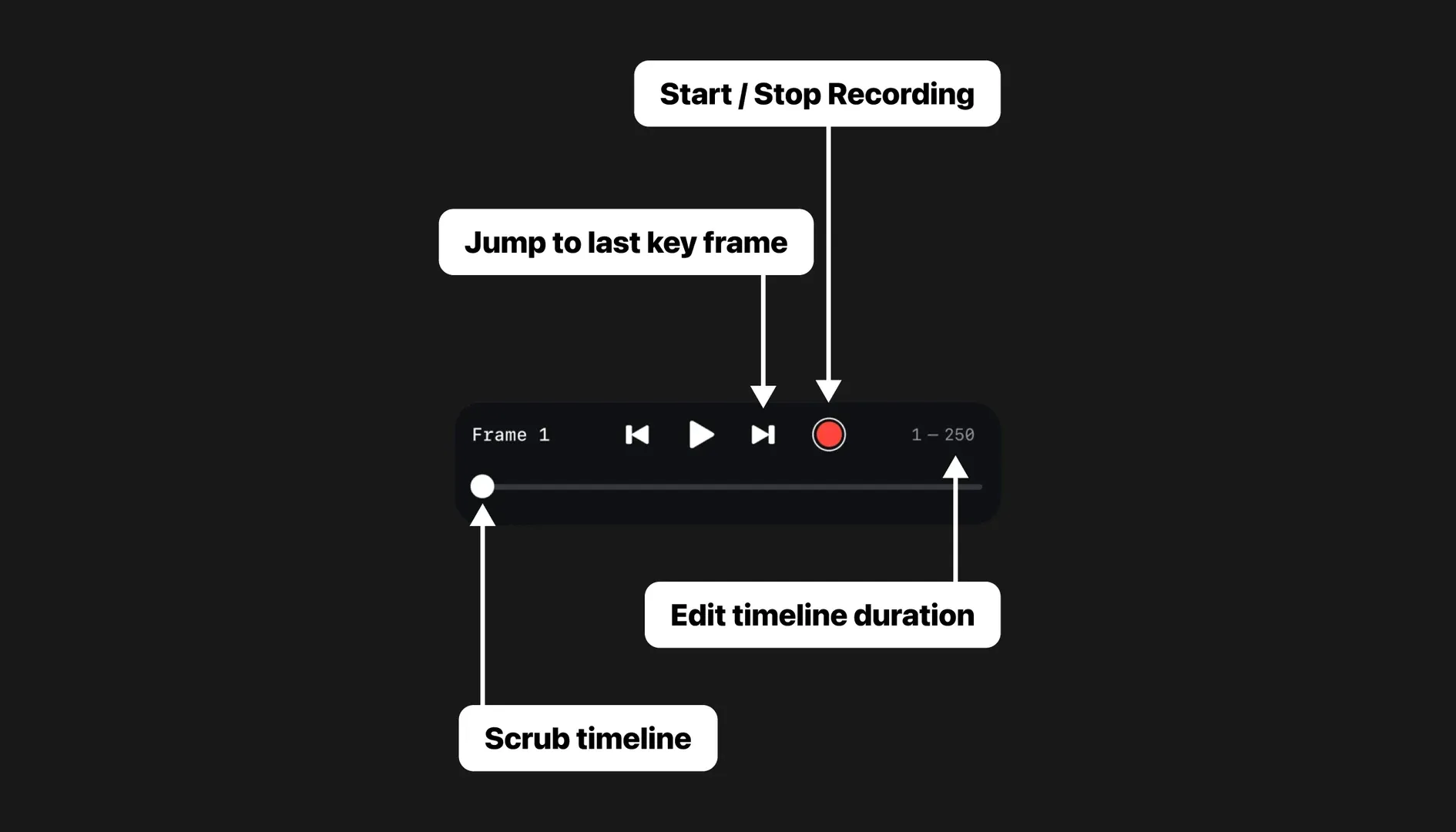
The free plan includes 3 camera motion recordings per day. Plus removes the daily limit.
What is free
You can do all of this without paying. The free plan includes live Blender camera and viewport control, touch gestures and joysticks, AR movement and scale adjustment, playback and scrubbing, and 3 camera motion recordings per day. See everything the virtual camera for Blender can do, or compare plans.
Comparing apps
If you are coming from VirtuCamera, our free VirtuCamera alternative comparison puts the two apps side by side, including price, supported Blender versions and other 3D software.
Going further
The Blender Virtual Camera guide covers every control, the AR scan and troubleshooting in detail. And if you want to track real footage instead of directing a virtual camera, read our guide to camera tracking.